06 juni 2013

Wat is nieuw in PowerPoint 2013-6 Notitievenster

Bij het opstarten zag je in vorige versies altijd standaard het notitievenster verschijnen. In PowerPoint 2013 is dit niet langer het geval.

Als je het notitievenster wil gebruiken moet je het eerst activeren.

Klik daarvoor onderaan je scherm op de knop Notities.


Of je kiest voor Beeld en vervolgens klik je in de groep Weergaven op de knop Notities.


05 juni 2013

Wat is nieuw in PowerPoint 2013-5 - Overzichtsweergave

Na het opstarten valt meteen op dat je aan de linkerkant van je scherm enkel nog de miniatuur dia's kunt zien. Het tweede tabblad Overzicht lijkt verdwenen te zijn.

Links PPT 2007/2010 - rechts PowerPoint 2013

Overzichtstab in PPT 2007/2010


Microsoft heeft de overzichtstab vervangen door de Overzichtsweergave.

Om de overzichtsweergave te activeren klik je op het lint Beeld, in de groep Presentatieweergaven klik je vervolgens op de knop Overzichtsweergave.


De overzichtsweergave laat je toe van alle tekst te bekijken die in tijdelijke aanduidingen is ingebracht.

Om terug over te schakelen naar de miniatuur dia's klik je in de groep Overzichtsweergaven op de knop Normaal.


04 juni 2013

What's new in PowerPoint 2013-5 - Outline view

When you start PowerPoint 2013, you will notice that the Outline tab you had on your left in previous versions seems to be gone. You are left with only the slides pane. Microsoft has replaced the outline tab with the Outline view.


Outline tab PowerPoint 2007/2010

If you want to do the same in PowerPoint 2013, go to View - click Outline view button in the Presentation views group.


The outline view allows you to view all the text you put in placeholders.


To switch to slide view click on the Normal button in the Presentation Views group.


31 mei 2013

What's new in PowerPoint 2013-4 - New button Ribbon display options

A new button has been added to the ribbon allowing you to change the display behaviour.


By default the Show Tabs and Commands is active.

If you choose Auto-hide Ribbon you get this screen:


If you choose Show Tabs you will get this screen:


30 mei 2013

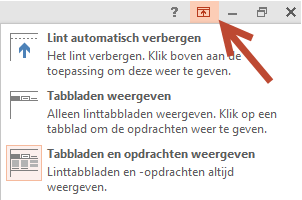
Wat is nieuw in PowerPoint 2013-4 - knop weergave opties Lint

Op het lint is er een nieuwe knop bijgekomen die je toelaat de weergave ervan te regelen.


Standaard zijn zowel tabbladen als opdrachten zichtbaar.

Kies je voor Lint automatisch verbergen dat krijg je dit scherm:


Kies je voor Tabbladen weergeven dan krijg je dit scherm:


29 mei 2013

Wat is nieuw in PowerPoint 2013-3 - Nieuw formaat, wijzig standaard naar 4x3

Als je het standaardformaat van 16x9 wil veranderen naar 4x3 doe je het volgende.

Start een nieuwe presentatie en kies daarbij het Blanco presentatie thema.

Klik in het lint Ontwerpen in de groep Aanpassen op de knop Diagrootte.


Kies voor Standaard 4x3

Op het tabblad Ontwerpen klik je op de knop Meer.


Kies voor Huidig thema opslaan.


In de map Document themes (PowerPoint neemt je er standaard naar toe) geef je een geschikte naam aan je thema en je klikt op Opslaan.


Klik opnieuw op het tabblad Ontwerpen, in de rubriek Aangepast klik je met je rechtermuisknop op je zojuist gemaakte thema.


Kies Als standaardthema instellen.

Sluit PowerPoint zonder de huidige presentatie op te slaan, start terug op, in het startscherm zie je nu als eerste pictogram je zelf gemaakte standaardthema.


28 mei 2013

What's new in PowerPoint 2013-3 - Aspect ratio change default to 4x3

If you want to change the default aspect ratio in PowerPoint 2013 from 16x9 to 4x3, proceed as follows:

Start a new presentation and choose the blank presentation theme.

Change the format to 4x3 by going to Design tab and in the Customize group click the Slide size button.


Click on Standard (4:3)

Again go to the Design tab - Themes group - click on the More button.


Click on Save current theme.


Save the theme in the Document themes folder (PowerPoint should take you there automatically) with a suitable name.

Now go to the Design tab again, in the custom section right-click on your newly created theme and choose Set as Default theme.


Now close PowerPoint and start again.

You should find your new default 4x3 theme as the first theme. Click on it and you are ready to go.


26 mei 2013

Wat is nieuw in PowerPoint 2013-3 - Nieuw formaat, wijzig van 16x9 naar 4x3

Als je voor het aanmaken van een nieuwe presentatie éénmalig wil overschakelen naar de verhouding 4x3 doe je het volgende.

Start een nieuwe presentatie en kies daarbij een van de meegeleverde thema's.

Klik in het lint Ontwerpen in de groep Aanpassen op de knop Diagrootte.


Kies voor Standaard 4x3

Vervolgens verschijnt er een dialoogvenster waar je kunt kiezen tussen Maximaliseren (inhoud van de dia kan groter lijken) en Passend maken (inhoud van dia kan verkleind lijken).

25 mei 2013

What's new in PowerPoint 2013-3 - Aspect ratio, change from 16x9 to 4x3

If you want to change the default aspect ratio for a new presentation to 4x3 here's what you have to do:

Start a presentation based on one of the themes.

Go to the Design tab and in the Customize group click the Slide size button.

Choose the 4x3 ratio.

In the following dialog choose between Maximize (slide content may appear enlarged) or Ensure fit (slide content may appear smaller).
Note that the dialog will not appear if you have chosen the blank presentation theme.


Choose whatever fits you.

24 mei 2013

Wat is nieuw in PowerPoint 2013-2 - Thema's, varianten 2

Je kan een variant op je thema toepassen op iedere dia uit je presentatie.

Selecteer de dia('s), klik met je rechtermuisknop op de variant van je keuze en kies voor Toepassen op geselecteerde dia's.


Wat is nieuw in PowerPoint 2013-3 - Nieuw formaat

Bij het starten van een nieuwe presentatie zal je onmiddellijk merken dat het formaat van de dia's werd aangepast.

Vroeger had je een verhouding van 4x3


Nu is dat 16x9 geworden, geschikt dus om de voordelen van breedbeeld te benutten.


Je kan nog altijd omschakelen naar de oude verhouding. Maar dat is het onderwerp voor een volgende bijdrage.

23 mei 2013

What's new in PowerPoint 2013-3 - Aspect ratio

When you start a presentation you will immediately notice that the default aspect ratio has changed in PowerPoint 2013.

It used to be 4x3

now it is 16x9.


Your slide size is now 13.33" wide and 7.33" tall.

You can still change the aspect ratio to the old default if you want.  But that will be a subject of a next blog.