In mijn vorige bijdrage las je hoe verborgen dia's kunnen worden afgedrukt.
Als je dit standaard wil voorzien kan je in de opties van PPT 2010-2013 een wijziging doorvoeren.
Klik op Bestand - Opties - onder Geavanceerd scroll je naar beneden en je activeert het keuzerondje naast De volgende afdrukinstellingen gebruiken - zet een vinkje bij Verborgen dia's afdrukken.
Er zal nu standaard onder de knop Alle dia's afdrukken een vinkje staan naast Verborgen dia's afdrukken.
22 juni 2014
13 juni 2014
Verborgen dia's printen in PPT 2010-2013
Je zal al gemerkt hebben dat PPT standaard verborgen dia's niet print. Dat is meestal een goede zaak aangezien een goede presentator veel gebruik maakt van verborgen dia's om, indien gewenst, extra informatie te geven of om in te spelen op eventuele vragen van het publiek.
Als je die verborgen dia's toch wil beschikbaar stellen aan je publiek bv. voor een handout, hoe moet je die geprint krijgen?
Ga naar Bestand - Afdrukken - klik op de knop Alle dia's afdrukken - helemaal onderaan activeer je verborgen dia's afdrukken.
Als je die verborgen dia's toch wil beschikbaar stellen aan je publiek bv. voor een handout, hoe moet je die geprint krijgen?
Ga naar Bestand - Afdrukken - klik op de knop Alle dia's afdrukken - helemaal onderaan activeer je verborgen dia's afdrukken.
![]() |
| PowerPoint 2010 |
10 juni 2014
Print hidden slides in PPT 2010 - 2013
You may have noticed that PPT by default does not print hidden slides. That is usually a good thing, good presenters often use hidden slides to provide - if needed - additional information, or to answer possible questions from the audience.
So can you print your presentation with the hidden slides (for instance in handouts) if you do want to provide the extra information to the viewer?
Go to File - Print - click on Print all slides button - click Print hidden slides.
So can you print your presentation with the hidden slides (for instance in handouts) if you do want to provide the extra information to the viewer?
Go to File - Print - click on Print all slides button - click Print hidden slides.
![]() |
| Print dialog PPT 2013 |
01 juni 2014
Objecten verbergen voor het printen - PPT 2013-2019
Soms moet je verschillende objecten op elkaar stapelen. Bij het printen van de dia of hand-out is dat soms erg storend omdat essentiële informatie niet meer zichtbaar is.
Gelukkig kan je objecten verbergen vóór dat je print. Daarvoor moet je het taakvenster Selectie en zichtbaarheid activeren. Persoonlijk doe ik dat het liefst met de toetsencombinatie Alt+F10.
Er zijn nog andere methoden om het taakvenster te activeren, zie mijn blogartikel dat je hier kan terugvinden:
Selectie en zichtbaarheid taakvenster
Simpelweg klikken op het icoontje met het oogje en een object kan verdwijnen/zichtbaar worden. Uiteindelijk print je enkel wat zichtbaar is.
Gelukkig kan je objecten verbergen vóór dat je print. Daarvoor moet je het taakvenster Selectie en zichtbaarheid activeren. Persoonlijk doe ik dat het liefst met de toetsencombinatie Alt+F10.
Er zijn nog andere methoden om het taakvenster te activeren, zie mijn blogartikel dat je hier kan terugvinden:
Selectie en zichtbaarheid taakvenster
Simpelweg klikken op het icoontje met het oogje en een object kan verdwijnen/zichtbaar worden. Uiteindelijk print je enkel wat zichtbaar is.
26 mei 2014
Hide objects just for printing in PPT 2013-2021
Ever had trouble printing slides or handouts with objects stacked on top of each other?
I often need to stack objects for animation purposes. The print or handout leaves to be desired.
To overcome the problem you can hide objects on your slide, print, then make them reappear.
Just use the selection and visibility pane. You can access it in different ways, personally I use the keyboard and press ALT+F10.
But there are different ways of getting to it see my previous article here:
Selection and visibility pane
Click on the little eye icons to make objects disappear, then print your slide.
I often need to stack objects for animation purposes. The print or handout leaves to be desired.
To overcome the problem you can hide objects on your slide, print, then make them reappear.
Just use the selection and visibility pane. You can access it in different ways, personally I use the keyboard and press ALT+F10.
But there are different ways of getting to it see my previous article here:
Selection and visibility pane
Click on the little eye icons to make objects disappear, then print your slide.
12 mei 2014
Show name theme on status bar
PPT 2013 no longer seems to show the name of the theme that was used to create a presentation on the status bar.
Fortunately you can still make it appear, just right-click the statusbar and put a check next to Theme.
09 mei 2014
Naam van thema tonen op statusbalk
PPT 2013 lijkt de naam van het gebruikte thema niet meer te tonen op de statusbalk zoals in vorige versies.
Dat valt makkelijk te verhelpen, rechts klikken op de statusbalk en kiezen voor Thema.
05 mei 2014
Personal themes in PPT 2013
As I mentioned in a previous post you can specify a folder for your personal templates in PPT 2013.
If you create your own custom theme (which will be saved in :
C:\Users\User name\AppData\Roaming\Microsoft\Templates)
you will have access to it using File - New - Custom
If you create your own custom theme (which will be saved in :
C:\Users\User name\AppData\Roaming\Microsoft\Templates)
you will have access to it using File - New - Custom
01 mei 2014
Persoonlijke thema's in PPT 2013
In een vorige bijdrage gaf ik al aan dat je een eigen folder kunt aanmaken voor persoonlijke sjablonen.
Wanneer je nu een eigen thema aanmaakt, (opgeslagen in:
C:\Gebruikers\Naam gebruiker\AppData\Roaming\Microsoft\Sjablonen\Document Themes)
kan je via Bestand - Nieuw - Aangepast het thema gebruiken.
Wanneer je nu een eigen thema aanmaakt, (opgeslagen in:
C:\Gebruikers\Naam gebruiker\AppData\Roaming\Microsoft\Sjablonen\Document Themes)
kan je via Bestand - Nieuw - Aangepast het thema gebruiken.
19 april 2014
Overzicht van alle thema's uit PPT 2007, 2010, 2013 en 2016 voor Windows en Mac
Microsoft heeft een hele reeks thema's die meegeleverd worden. Als je wil weten welke thema terug te vinden is in welke versie van PPT dan is je zoektocht voorbij.
Geetesh Bajaj heeft een overzicht gecreëerd van alle thema's vanaf versie 2007 tot 2016 op zijn Indezine site.
Als je het thema wat groter wil zien klik dan gewoon op het miniatuur.
http://www.indezine.com/products/powerpoint/learn/themes/which-themes-are-installed.html
Geetesh Bajaj heeft een overzicht gecreëerd van alle thema's vanaf versie 2007 tot 2016 op zijn Indezine site.
Als je het thema wat groter wil zien klik dan gewoon op het miniatuur.
http://www.indezine.com/products/powerpoint/learn/themes/which-themes-are-installed.html
16 april 2014
Overview of PPT 2007-2010-2013-2016 themes for Windows and Mac
Microsoft has a variety of themes in different PPT versions. If you want to know what theme can be found in what version the search is over. Only the Office theme made it through all versions.
Geetesh Bajaj has created this excellent overview of all of them on his Indezine site.
If you want a larger view of the theme just click the thumbnail.
http://www.indezine.com/products/powerpoint/learn/themes/which-themes-are-installed.html
Geetesh Bajaj has created this excellent overview of all of them on his Indezine site.
If you want a larger view of the theme just click the thumbnail.
http://www.indezine.com/products/powerpoint/learn/themes/which-themes-are-installed.html
02 april 2014
Personal templates in PPT 2013
Up to PPT 2010 when you saved a template, PPT automatically took you to the appropriate templates folder on your hard drive: C:\Users\Username\AppData\Roaming\Microsoft\Templates.
To use the template you could go to File - New - and click My templates.
Now PPT puts it in a folder Custom Office templates in your library : C:\Users\Username\Documents
Fortunately you can set a new default folder for your personal templates.
Click File - Options - Save - Under Save presentations click in the box next to Default Personal Templates location and type your path. Or you can copy/paste the path using Windows Explorer, to do that right click the address bar in Windows Explorer and copy the address.
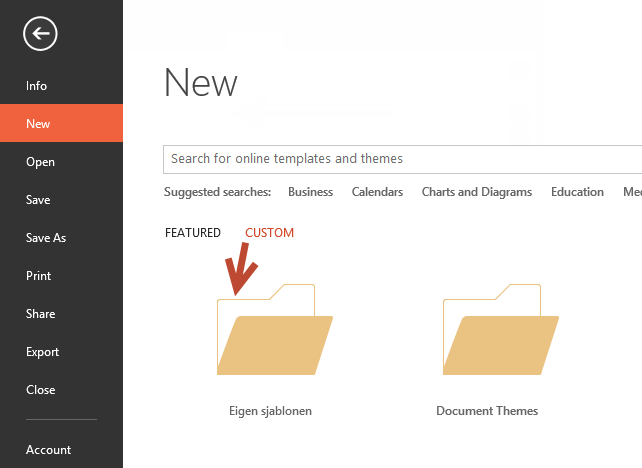
Now when you go to File - New you will find your personal templates under the Custom category. Just click on the category, all your custom templates will be shown.
To use the template you could go to File - New - and click My templates.
Now PPT puts it in a folder Custom Office templates in your library : C:\Users\Username\Documents
Fortunately you can set a new default folder for your personal templates.
Click File - Options - Save - Under Save presentations click in the box next to Default Personal Templates location and type your path. Or you can copy/paste the path using Windows Explorer, to do that right click the address bar in Windows Explorer and copy the address.
Now when you go to File - New you will find your personal templates under the Custom category. Just click on the category, all your custom templates will be shown.

Abonneren op:
Posts (Atom)


