Posts tonen met het label icons. Alle posts tonen

09 mei 2022

New icons and illustrations in PPT 2021

Starting with PPT 2021 there are more possibilities to use illustrations, icons. These are included in the new Picture button on the ribbon. Click Insert - Picture - and choose the new item Stock pictures.

Now you can choose from a few categories: images, icons, callout people, stickers, videos, illustrations and cartoon people. All of the options are further devided into several subcategories.

The images are free for use in PPT.


There is an expanded set of icons. You can also still get at them using Insert - Icons on the Insert tab.

The cutout people tab contains png images of people. They all have a transparent background. 

The stickers tab is completely new and contains some funny cartoon like pictures. Not to use in a professional environment though.

The video tab is new also. These are small videos which loop until stopped.

The illustrations tab contains illustrations in grey scale with a yellow popup. The yellow popup can have another colour, select the illustration click on the Graphics format tab and choose Graphic fill, then choose your new fill. See the example below:

Illustrations are svg files which means they are defined by an equation. You can change these by converting them to a PPT object. Illustrations have the same behaviour as icons to change them see my article: Use and change icons in PPT

Svg stands for Scalable Vector Graphics. These are high quality images that can be scaled to any size without losing quality. No pixelation whatsoever. On top of that they are much smaller in size.

Finally the last category is cartoon people. In this category you can assemble your own cartoon character. Below is an example:


05 januari 2022

Merge icons and shapes in PPT 2019

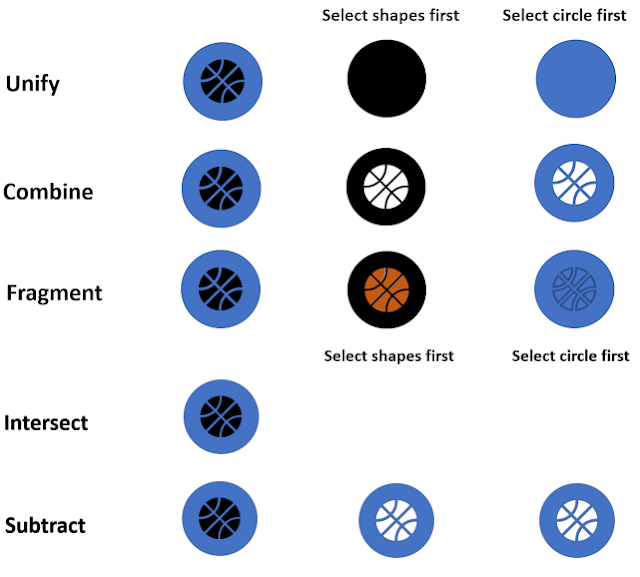
Merging icons and other shapes doesn't seem possible at first glance. This is apparent from the tables below where I have tried all the possibilities of merging. As in previous posts I worked with two objects. You can see the results when the icon (column 2) or the shape is selected first (column 3).


The results are not useful.

To successfully merge icons with other shapes, you must first convert the icon into separate shapes.

This can be done in two ways, the first is via the group function. Select the icon and under Graphics Tools click the Format tab and the Group button and choose Ungroup. A message will appear asking if you want to convert the object to a Microsoft drawing object, click Yes


If you try to merge now you will see that the Merge Shapes button remains gray. To split the icon permanently, Ungroup again. Now you will be able to merge.

Below you can see the selected objects after the first and second ungroup:

The second option is a bit simpler. Select your icon and under Graphics Tools, click the Format tab, then choose the Convert to Shapes button in the Modify group or right click the icon and choose the same.


However, you still have to ungroup again if you want to merge. Select the icon and under Graphics Tools click the Format tab, click the Group button and choose Ungroup.

As ungrouping splits the icon in many pieces you will have to drag around it with your mouse, being careful not to select the underlying object as well. See below for an example.

These are the results after the icon was split. Especially with fragmentation you have more options. There you can still adjust the different parts after merging. Below you observe the example of the basketball that has been given its familiar orange colour.


16 oktober 2020

Use icons as bullets in PPT 2019

The choice to include icons in PPT was a good one. You can also use these icons as a bullet in content placeholders.

Click on the Bullet button in the Paragraph group of the Home tab, choose Bullets and numbering at the bottom.
Click on the Picture button in the dialog:

You are presented with three options:
Choose From Icons en select in a category of your choice a suitable icon then click on the Insert button.

The new bullet is now in the dialog and you can use it whenever you want.


22 december 2019

Use an edit icons in PPT 2016-2019

One of the new features of PPT 2016-2019 is the possibility to add icons. Icons are vector files. You can also use svg files which are another vector type. In other words, these pictures can easily be scaled, rotated or colored without any loss of quality.

You can find the feature under the Insert tab, just click the Icons button.


You can choose between different categories.

Select the icon(s) you want to use and click the Insert button.

Below you can see an icon from the Analysis category. The bars have been altered to a different color.

What do you need to do?

After inserting the icon right-click the icon and choose Convert to shape.

PPT asks you if you want to convert the object to a Microsoft Office drawing object. Click Yes.


At first it seems nothing has changed, but click on a detail of the shape and you will see that you now can select individual parts of the icon.
Adjust colour

Click the contextual Format tab and choose the Shape fill button in the Shape styles group and apply a new colour.
Repeat the process for the other parts.

Add text

Once the icon is converted you can add text to the shape.

Here's an example of a shopping cart.
After converting the icon you can see that the wheels and the basket are individual shapes. I have adjusted the color of both in the example.
Now if you select the icon you can ungroup it and rescale if necessary. Select only the basket and
format the text further using the contextual Format Shape tab and the Text fill button in the WordArt Styles group.

Edit points

Right-click the shape and choose the Edit points option.


In the example I moved two points to create the impression of movement.


Apply 3-D formatting

You can take it one step further by applying 3-D formatting.

Right-click the icon and choose Edit shape.

In Format shape task pane click the Effects button. Here's an example where I changed the border/depth and 3-D rotation.

So, to conclude icons can be edited to make them look better.

The supply of Microsoft is limited. There is no search possibility (although this seems to have changed in the 365 version).

On the internet you can find a lot of sites who offer free icons. I found the following sport series on Iconfinder.com.