22 september 2007

You tube add-in for PowerPoint - You tube add-in voor PowerPoint

Shyam Pillai, MVP, has written a free add-in to integrate 'You tube' movies into a PowerPoint presentation.

Here's the link:

http://skp.mvps.org/youtube.htm

Shyam Pillai, MVP, heeft een nieuwe gratis add-in geschreven om 'You tube' video's op te nemen in een PPT-presentatie.

Hier is de link:

http://skp.mvps.org/youtube.htm

Service pack 3 for Office 2003 - Service pack 3 voor Office 2003

Microsoft just released Microsoft Office 2003 Service Pack 3. The service pack includes several security updates and has all the updates from service pack 1 and 2.

You can find it here:

http://www.microsoft.com/downloads/details.aspx?FamilyId=E25B7049-3E13-433B-B9D2-5E3C1132F206&displaylang=en

Microsoft heeft zojuist service pack 3 voor Office voor download beschikbaar gesteld. Service pack 3 bevat alle updates van service pack 1 en 2.

Kan je hier dowloaden:

ttp://www.microsoft.com/downloads/details.aspx?FamilyID=85af7bfd-6f69-4289-8bd1-eb966bcdfb5e&DisplayLang=nl


24 augustus 2007

Een PowerPoint show met Windows Mediaplayer afspeellijst in achtergrond - deel 3/PowerPoint show with Windows Media Player playlist in background - part 3

Windows Media Player list as background to a PowerPoint show (PPT 2007) -
part 3

Now that we successfully inserted the playlist it is time to let the show run automatically and loop.
  1. Select all slides in the Outline tab.
  2. In the ribbbon click on the 'Animations' tab.
  3. In the 'transition to this slide' group next to advance automatically after choose the appropriate timing you want the slide to transition.
  4. Click on the 'Apply to all button' in the same group.
    If you want you can also choose a suitable transition in the transition gallery. Don't forget to click the 'Apply to all' button again if you do so.
  5. Now click on the Slide show tab in the ribbon, in the 'Set up' group choose 'Set up slide show' button.
  6. Click on the radio button 'Browsed at a kiosk' and hit OK.
That's all there is to it.


Windows Media Player afspeellijst als achtergrond bij een PowerPoint voorstelling  (PPT 2007) - deel 3
De afspeellijst is nu toegevoegd aan de eerste dia. De lijst zal automatisch afspelen gedurende de voorstelling. Het is nu tijd om de voorstelling automatisch te laten lopen met de gewenste timing.

  1. Selecteer alle dia's in het overzichtsvenster.
  2. Klik op de tab 'Animaties' op het lint.
  3. In de groep 'Overgang naar deze dia' stel je naast 'Automatisch na' het gewenste altijd seconden gedurende dewelke de dia moet getoond worden.
  4. Klik op de knop 'Op alles toepassen' in dezelfde groep.
  5. Als je dat wenst kan je ook een overgangseffect kiezen in de galerij. Vergeet niet opnieuw op de knop 'Op alles toepassen' te klikken.
  6. Kies nu de tab 'Diavoorstelling' op het lint, in de groep 'Instellen' klik je op de knop 'Diavoorstelling instellen'.
  7. Klik op het keuzerondje 'Bekeken in een kiosk' en klik OK.
Zo, je bent klaar, start de presentatie en geniet. Dit is bij uitstek geschikt voor grote voorstellingen met foto's.

23 augustus 2007

Een PowerPoint show met Windows Mediaplayer afspeellijst in achtergrond - deel 2 (PPT 2007)/PowerPoint show with Windows Media Player playlist in background - part 2

Windows Media Player list as background to a PowerPoint show (PPT 2007) -
part 2


Now that we have selected the playlist and have choosen to play it automatically we will finetune the animation.
  1. Go to the custom animation taskpane (if it is not visible, click the Animation tab in the ribbon, in the 'Animation' group click on the Custom animation button).
  2. Double click the entry for the animation of the playlist. Be careful to choose the play action item and not the stop action item.
  3. Choose the effect tab, and in the stop playing group click the 'After' radio button and choose the number of slides in your presentation. Or put in the maximum number of 999 so that the music will not stop even when the show is looped.
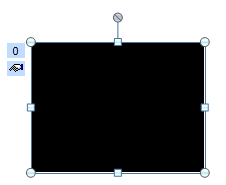
Now, how to get rid of the black object in the centre of the slide. Well you can resize it and drag it into place if you want it to be visible.

Or if you do not want to see it at all, resize it and drag it into the grey area surrounding the slide. If necessary you can use the zoomslider in the bottom left corner to make this process easier.

That's it for part two. Next time we will set up the presentation in a loop so that it can run anywhere without someone having to watch over it.

Windows Media Player afspeellijst als achtergrond bij een PowerPoint voorstelling (PPT 2007)
 - deel 2 

Nu de afspeellijst geselecteerd is en deze automatisch zal afspelen gaan wij de animatie wat bijstellen.
  1. Activeer het taakvenster 'Aangepaste animatie' (indien niet zichtbaar, klik in het lint op het blad 'Animaties', kies in de groep 'Animaties' voor de knop 'Aangepaste animatie').
  2. Dubbelklik op de animatie van de afspeellijst.
    Opgelet, kies voor het item afspelen en niet voor het item onderbreken.
  3. Klik op het tabblad 'Effect' en kies het keuzerondje 'Na' bij de rubriek 'Afspelen stoppen'. Vul minimaal het totaal aantal dia's uit de presentatie in. Of typ het maximum van 999 in zodat de muziek niet zal stoppen ook niet als die zal herhaald worden.
Hoe kunnen wij nu het zwarte object kwijtraken. Twee mogelijkheden: ofwel verklein en sleep je het object op de plaats waar je dat wenst.

Of je verkleint het object en sleept het in de grijze zone rondom de dia. Om dat wat makkelijker te maken kan je met de zoomschuifregelaar onderaan het scherm wat uitzoomen.

Tot zover voor deel 2. In het derde deel laten wij zien hoe de voorstelling automatisch te laten lopen en herhalen.

22 augustus 2007

Een PowerPoint show met Windows Mediaplayer afspeellijst in achtergrond - deel 1 (PPT 2007)/PowerPoint show with Windows Media Player playlist in background - part 1

Windows Media Player list as background to a PowerPoint show (PPT 2007).

Often I get the question how to play a music tune in the background of a PowerPoint show. Well you can also use a Windows Media Player playlist with several music tunes if you want. Other playlists created with WinAmp for example can also be used. Here's how.

Part 1
Create your playlist in Windows Media Player, if you do not know how to do this have a look here:
Create Windows media Player playlist

Once you have done this, open your slideshow, and do the following:
  1. On the 'Insert' ribbon click the 'Sound button' in the 'Mediaclips' group.
  2. Choose 'Sound from file'
  3. Navigate to the folder containing your playlist, should look like something like
    C:\Users\Your name\Music\Playlists
  4. Make sure you have 'All files (*.*)' selected in the drop-down type of file list. If you don't nothing will show up.
  5. Select your playlist.
  6. Click OK
  7. Click on 'Start Automatically'.
  8. The following object will appear.


Don't worry that it is in the middle of your slide. We will take care of that later.
First we will give the object the needed animation settings to make it play across several slides.
That will be for the next time, though, time to please the Dutch readers first.

Windows Media Player afspeellijst als achtergrond bij een PowerPoint voorstelling (PPT 2007).

Ik krijg geregeld de vraag hoe je een enkel muzieknummer over verschillende dia's of over de volledige show kunt laten doorspelen. Wel je kan in PowerPoint 2003 en 2007 een afspeellijst gecreĆ«erd in Windows Media Player afspelen in de achtergrond.

Deel 1
Maak je afspeellijst in Windows Media Player. Als je niet weet hoe dat moet kijk dan eens op de volgende link:
Aanmaken afspeellijst Windows media player

Eens dat achter de rug, doe je het volgende om de afspeellijst te gebruiken:
  1. Kies op het lint de tab 'Invoegen', klik op de knop 'Geluid' in de groep 'Mediaclips'.
  2. Kies voor 'Geluid uit bestand'.
  3. Navigeer naar de map met de afspeellijst, zou er ongeveer zo moeten uitzien:
    C:\Gebruikers\Je naam\Muziek\Afspeellijsten
  4. Zorg ervoor dat 'Alle bestanden (*.*)' is geselecteerd in de lijst. Anders verschijnt er niets in de lijst.
  5. Selecteer je afspeellijst.
  6. Klik OK
  7. Klik op knop 'Automatisch'.
  8. Het volgende object zal verschijnen op je dia:

Maak je geen zorgen over het feit dat het object in het midden van je dia staat en eventueel andere objecten bedekt dat gaan wij later wel oplossen.

Eerst gaan wij het object de nodige instellingen bezorgen zodat de afspeellijst over verschillende of alle dia's speelt.

Dat zal behandeld worden in deel 2.

05 juli 2007

Apply motion paths to Autoshapes (4)/Animatiepaden toepassen op AutoVormen (4)

Motion paths applied to AutoShapes (part four)

This time we animate a rectangle AutoShape, we apply an animation path to it so that it covers up another shape. The path is reversed so that the shape appears again. The timing is adapted using the advanced time line. You will need a solid background colour to make this work. The rectangle follows the background fill and has no line fill.

Animatiepaden toegepast op AutoVormen (deel vier)

Deze keer wordt een AutoVorm gebruikt waar het animatiepad omlaag is op toegepast. Het pad wordt vervolgens automatisch omgekeerd. Op deze manier verdwijnen de letters om vervolgens terug te verschijnen. De timing van de verschillende paden wordt scherper gesteld via het geavanceerd tijdschema.
Dit werkt enkel met een effen achtergrondkleur. De rechthoek volgt de achtergrondkleur en krijgt geen rand.

16 juni 2007

Apply motion paths to make an anagram/Animatiepaden toepassen voor een anagram

Motion paths applied to textboxes (part six)

This is sample six. A bit of fun transforming a word, letter by letter into another word. Anagrams are fun.
Enjoy

Animatiepaden toegepast op tekstvakken (deel 6)

Voorbeeld zeven van geanimeerde tekstvakken. Een woord wordt letter per letter omgezet naar een ander woord. Of hoe je je kan amuseren met een anagram.

10 juni 2007

Apply motion paths to AutoShapes (3)/Animatiepaden toepassen op AutoVormen (3)

Motion paths applied to AutoShapes (part three)

This is sample three of an AutoShape animated with a motion path. This time we combine the motion path 'Square' with the entrance effect 'Dissolve'.

Animatiepaden toegepast op AutoVormen (deel drie)

In dit derde voorbeeld wordt een rechthoek in combinatie met een aantal tekstvakken geanimeerd. Het animatiepad vierkant wordt gecombineerd met het ingangseffect 'Oplossen in'. 

29 mei 2007

PowerPoint show on your desktop - PowerPoint presentatie op je desktop (PPT 2003)

Is it possible to use a PPT-presentation on your desktop as a screensaver?

Yes it is, here's a link to Glen Millars PowerPoint site where he explains the whole procedure.
Glenn Millar is an PowerPoint MVP from Australia, and he has an excellent site. Glen is a PowerPoint animation wizard. You will find lots of samples of his work, it is really impressive.
Screensaver presentation

Is het mogelijk om een PowerPoint presentatie als een soort van screensaver op je bureaublad af te spelen?

Ja, dat is mogelijk. Omdat dit een nogal uitgebreide procedure is ga ik die niet hier uiteenzetten maar verwijzen naar de site van Glenn Millar (PowerPoint MVP).
Bij iedere stap staat een screenshot. Veel plezier ermee.

Screensaver presentatie

22 mei 2007

Play and stop music in a presentation/Afspelen en stoppen van muziek tijdens presentatie (PPT 2003)

When using sound files in Power Point 2003 there seems to be no way of
stopping the sound, when playing the slide show. How do you do that?


A question I got some time ago.
  1. After inserting the sound file choosing to play on click, activate the custom animation task pane.
  2. Select your sound icon on the slide.
  3. Click on add effect, choose 'Sound actions', select stop.
  4. Now move the entry using the arrows up/down so that it is positioned under the play action. This will allow you to start and stop the sound on click.

    If you insert the sound file and let it play automatically, then add the stop action as described, double click on it in the custom animation task pane, choose Timing tab, click the Triggers button. Change to "start effect on click of" and choose the music from the drop down list. The music will now stop when you click the icon.
Is er een mogelijkheid om een geluidsbestand tijdens de presentatie gewoon stop te zetten door te klikken op het pictogram met het luidsprekertje?

Een vraag die ik een tijdje geleden voorgelegd kreeg.
  1. Voeg het geluid in via Invoegen - Films en geluiden - Geluid uit bestand - kies voor 'Wanneer er wordt op geklikt'.
  2. Activeer het taakvenster 'Aangepaste animatie'. Selecteer het geluidspictogram op je dia.
  3. Kies 'Effect toevoegen', selecteer 'geluidsacties', kies stoppen.
  4. Gebruik nu bij 'volgorde wijzigen' onderaan het taakvenster de pijl en plaats de actie juist onder de afspeelactie. Dit zal je toelaten om tijdens de presentatie het geluid stop te zetten of te starten door te klikken op het geluidspictogram.


Kies je bij het invoegen van het geluid voor 'Automatisch' voeg dan de actie stoppen toe zoals hierboven beschreven. Dubbelklik erop in het taakvenster, kies tabblad tijdsinstelling, bij activeringsmethode selecteer je het geluid in de lijst naast 'Geluid laten beginnen bij klikken op'. Zo kan je het geluid stoppen.


17 mei 2007

Apply animation paths to AutoShapes (2)/Animatiepaden toepassen op AutoVormen (2)

Animation paths applied to AutoShapes (part two)

In this second sample the first rectangle appears with the entrance effect 'faded zoom'.
Then four other rectangles appear from the top of the slide and move down till they are positioned under the first one.
The motion paths are locked so that you can move the shape independently from the path.

Animatiepaden toegepast op AutoVormen (deel twee)

In het tweede voorbeeld met AutoVormen worden vijf rechthoeken met tekst geanimeerd. De eerste rechthoek verschijnt met het ingangseffect 'Vervaagd in- en uitzoomen'. De overige vier worden met een animatiepad automatisch van buiten de dia tot onder de eerste rechthoek gebracht. De animatiepaden zijn vergrendeld zodat je de vorm onafhankelijk kunt verplaatsen van het pad.

Apply motion paths to AutoShapes (1)/Animatiepaden toepassen op AutoVormen (1) (PPT 2003 - PPT 2007 - PPT 2010)

Motion paths applied to AutoShapes

First sample of motion paths applied to an AutoShape with text.
There are four rectangles with text which appear automatically. The motion path exits three of them, only one remains. The text is then emphasized with a different colour using the animation effect color wave.

Animatiepaden toegepast op AutoVormen

Eerste voorbeeld van een animatiepad dat is toegepast op een vorm met tekst.
Er zijn vier rechthoeken met tekst, zij verschijnen automatisch, vervolgens worden er drie met een animatiepad buiten de dia gestuurd. Het laatste vak blijft staan in het midden van de dia en wordt voorzien van een nadrukeffect, kleuren golven.