Posts tonen met het label playlist. Alle posts tonen

01 juni 2016

Use a playlist from Windows Media player as background music in PPT 2013 (update)

I made these articles on using a windows media player playlist as background music for PPT 2007.
PowerPoint show with Windows Mediaplayer playlist in background - part 1
PowerPoint show with Windows Media Player playlist in background - part 2
PowerPoint show with Windows Media Player playlist in background - part 3


Here's the PPT 2013 update, with some additions and screenshots.

Step 1
Make your playlist in Windows Media Player

If you do not know how to make a playlist see this article:
Create playlist in WMP

Step 2
Insert the playlist in your presentation
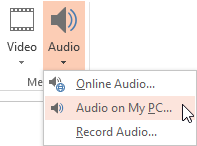
Click the Insert tab on the ribbon, choose Audio button


Click on Audio on my PC
Locate the folder where your playlist resides
(usually something like : C:\Users\User Name\Music\Playlists
In the list of files choose All files (*.*)
Select your playlist and click Insert

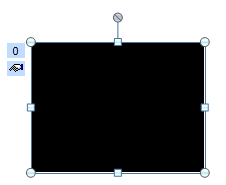
A black box will appear in the middle of your slide. You can adjust this box or make it disappear.
If you do not want to see the black box, reduce the size with the handles and drag it in the surrounding area of the slide. I tried to add a Poster frame to the box to make it more attractive but the poster seems to disappear when the presentation is started and you are left with an ugly box.

Step 3
Make the playlist play automatically

Select the black box
Under Video tools, click Playback tab? For some reason PPT considers the music playlist as a video. So you could as easily use Insert Video from your PC to play the music.

Under the Video options group, next to Start click the arrow and choose Automatically.


Step 4
Make the music play across multiple slides

Select the Animations tab on the ribbon and click Animation pane
Double click the play item in the animation pane


Under Start playing choose from the beginning
Under Stop playing indicate the number of slides you want the playlist to play, click OK


When presenting you can click when you want to transition from one slide to another. Or you can apply an automatic timing to your slides so that the presentation will run by itself. The choice is yours.

PPT 2016 and later

It seems that it is no longer possible to add a playlist as background music in PPT 2016-2019.


22 augustus 2007

Een PowerPoint show met Windows Mediaplayer afspeellijst in achtergrond - deel 1 (PPT 2007)/PowerPoint show with Windows Media Player playlist in background - part 1

Windows Media Player list as background to a PowerPoint show (PPT 2007).

Often I get the question how to play a music tune in the background of a PowerPoint show. Well you can also use a Windows Media Player playlist with several music tunes if you want. Other playlists created with WinAmp for example can also be used. Here's how.

Part 1
Create your playlist in Windows Media Player, if you do not know how to do this have a look here:
Create Windows media Player playlist

Once you have done this, open your slideshow, and do the following:
  1. On the 'Insert' ribbon click the 'Sound button' in the 'Mediaclips' group.
  2. Choose 'Sound from file'
  3. Navigate to the folder containing your playlist, should look like something like
    C:\Users\Your name\Music\Playlists
  4. Make sure you have 'All files (*.*)' selected in the drop-down type of file list. If you don't nothing will show up.
  5. Select your playlist.
  6. Click OK
  7. Click on 'Start Automatically'.
  8. The following object will appear.


Don't worry that it is in the middle of your slide. We will take care of that later.
First we will give the object the needed animation settings to make it play across several slides.
That will be for the next time, though, time to please the Dutch readers first.

Windows Media Player afspeellijst als achtergrond bij een PowerPoint voorstelling (PPT 2007).

Ik krijg geregeld de vraag hoe je een enkel muzieknummer over verschillende dia's of over de volledige show kunt laten doorspelen. Wel je kan in PowerPoint 2003 en 2007 een afspeellijst gecreĆ«erd in Windows Media Player afspelen in de achtergrond.

Deel 1
Maak je afspeellijst in Windows Media Player. Als je niet weet hoe dat moet kijk dan eens op de volgende link:
Aanmaken afspeellijst Windows media player

Eens dat achter de rug, doe je het volgende om de afspeellijst te gebruiken:
  1. Kies op het lint de tab 'Invoegen', klik op de knop 'Geluid' in de groep 'Mediaclips'.
  2. Kies voor 'Geluid uit bestand'.
  3. Navigeer naar de map met de afspeellijst, zou er ongeveer zo moeten uitzien:
    C:\Gebruikers\Je naam\Muziek\Afspeellijsten
  4. Zorg ervoor dat 'Alle bestanden (*.*)' is geselecteerd in de lijst. Anders verschijnt er niets in de lijst.
  5. Selecteer je afspeellijst.
  6. Klik OK
  7. Klik op knop 'Automatisch'.
  8. Het volgende object zal verschijnen op je dia:

Maak je geen zorgen over het feit dat het object in het midden van je dia staat en eventueel andere objecten bedekt dat gaan wij later wel oplossen.

Eerst gaan wij het object de nodige instellingen bezorgen zodat de afspeellijst over verschillende of alle dia's speelt.

Dat zal behandeld worden in deel 2.