Posts tonen met het label audio background music. Alle posts tonen

22 december 2020

Combine several audio clips with audacity and use as background sound in PPT 2019

In earlier versions of PPT one could use a Windows Media Player playlist to use as background music for a presentation. Starting with version 2016 this is no longer possible. See my previous article:

Use a WMP playlist in PPT

Here's an alternative using the free audio editing app Audacity. There are several ways to do this in Audacity this is just what I use.

Start Audacity
Click File, Import and select your audio clips. Use ctrl+click to select several. Click Open.
Both clips are neatly arranged one below the other.

Press CTRL+A to select both clips and click Tracks and choose Align tracks and then Align End to End.

Both clips are now aligned.


Finally go to File again and choose Export, Export as MP3 or another format of your choice. Select the folder and give the file a new name. Click Save.

A warning dialog appears reminding you that both clips will be mixed and saved as one clip. Click OK.


Change the metadata if needed and click OK.

When you open the new file in Audacity you will see that both clips are now just one clip.


Now you can use the mixed clips as one clip in your PPT presentation.

If you want guidance to do this see this article:

Play audio across slides


01 juni 2016

Use a playlist from Windows Media player as background music in PPT 2013 (update)

I made these articles on using a windows media player playlist as background music for PPT 2007.
PowerPoint show with Windows Mediaplayer playlist in background - part 1
PowerPoint show with Windows Media Player playlist in background - part 2
PowerPoint show with Windows Media Player playlist in background - part 3


Here's the PPT 2013 update, with some additions and screenshots.

Step 1
Make your playlist in Windows Media Player

If you do not know how to make a playlist see this article:
Create playlist in WMP

Step 2
Insert the playlist in your presentation

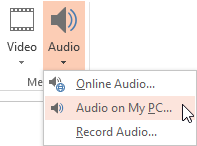
Click the Insert tab on the ribbon, choose Audio button


Click on Audio on my PC
Locate the folder where your playlist resides
(usually something like : C:\Users\User Name\Music\Playlists
In the list of files choose All files (*.*)
Select your playlist and click Insert

A black box will appear in the middle of your slide. You can adjust this box or make it disappear.
If you do not want to see the black box, reduce the size with the handles and drag it in the surrounding area of the slide. I tried to add a Poster frame to the box to make it more attractive but the poster seems to disappear when the presentation is started and you are left with an ugly box.

Step 3
Make the playlist play automatically

Select the black box
Under Video tools, click Playback tab? For some reason PPT considers the music playlist as a video. So you could as easily use Insert Video from your PC to play the music.

Under the Video options group, next to Start click the arrow and choose Automatically.


Step 4
Make the music play across multiple slides

Select the Animations tab on the ribbon and click Animation pane
Double click the play item in the animation pane


Under Start playing choose from the beginning
Under Stop playing indicate the number of slides you want the playlist to play, click OK


When presenting you can click when you want to transition from one slide to another. Or you can apply an automatic timing to your slides so that the presentation will run by itself. The choice is yours.

PPT 2016 and later

It seems that it is no longer possible to add a playlist as background music in PPT 2016-2019.